AutoCAD Title Block Sheets: ISO A4, A3 and A1
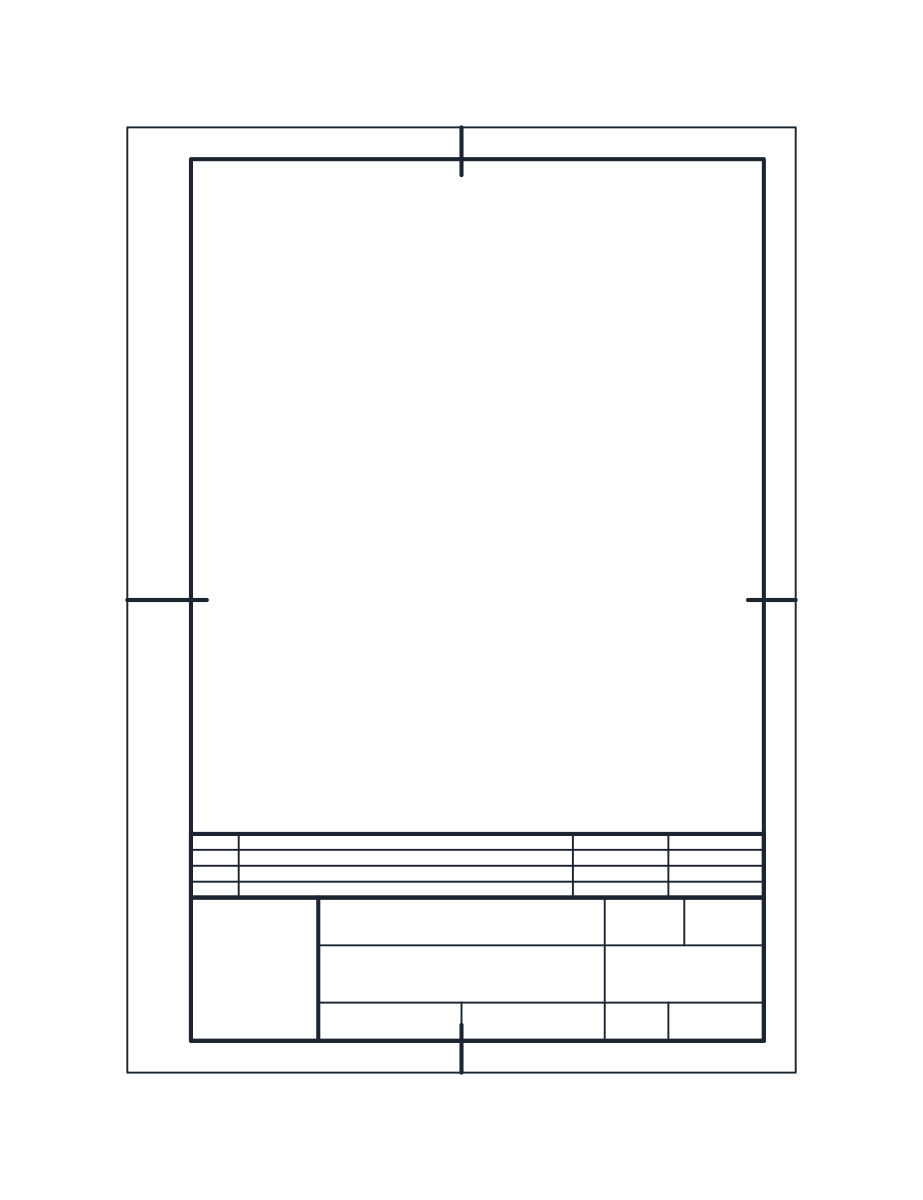
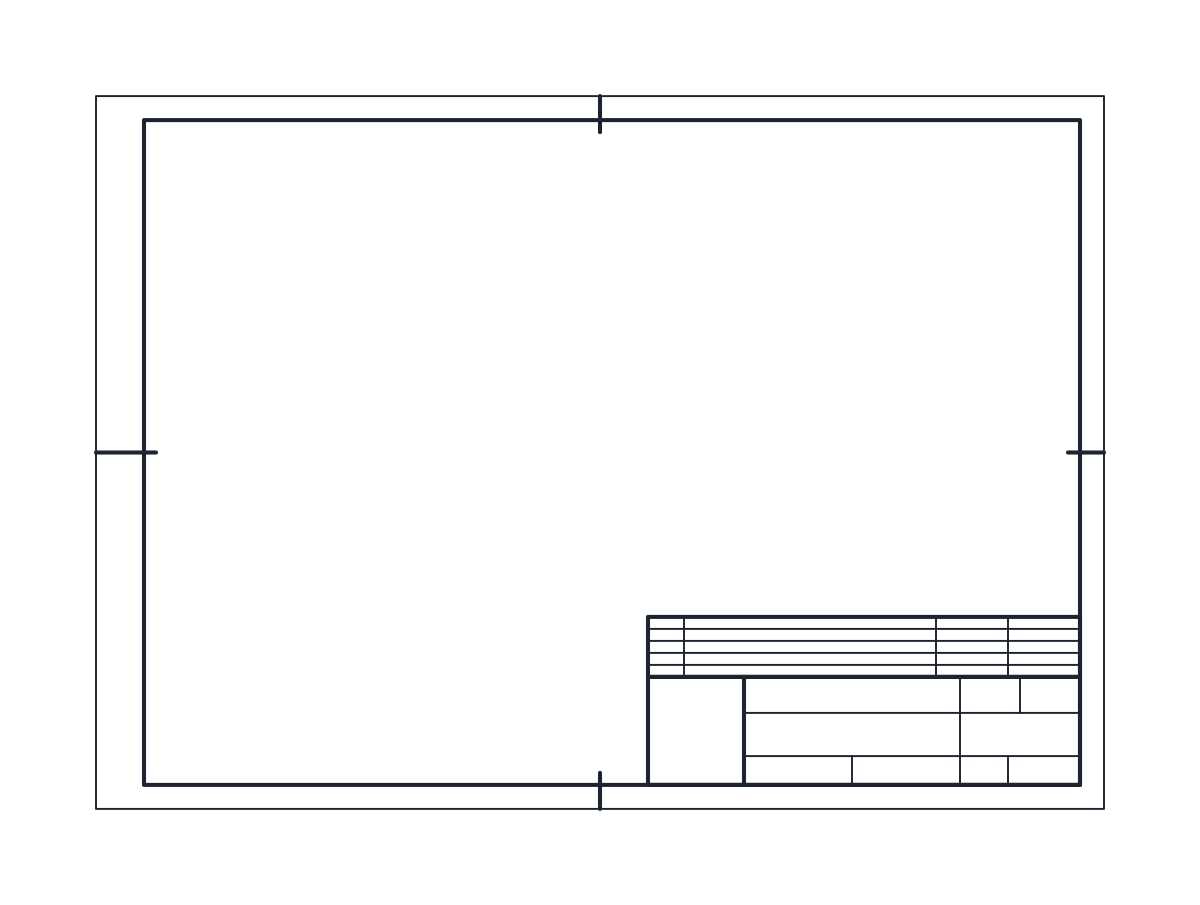
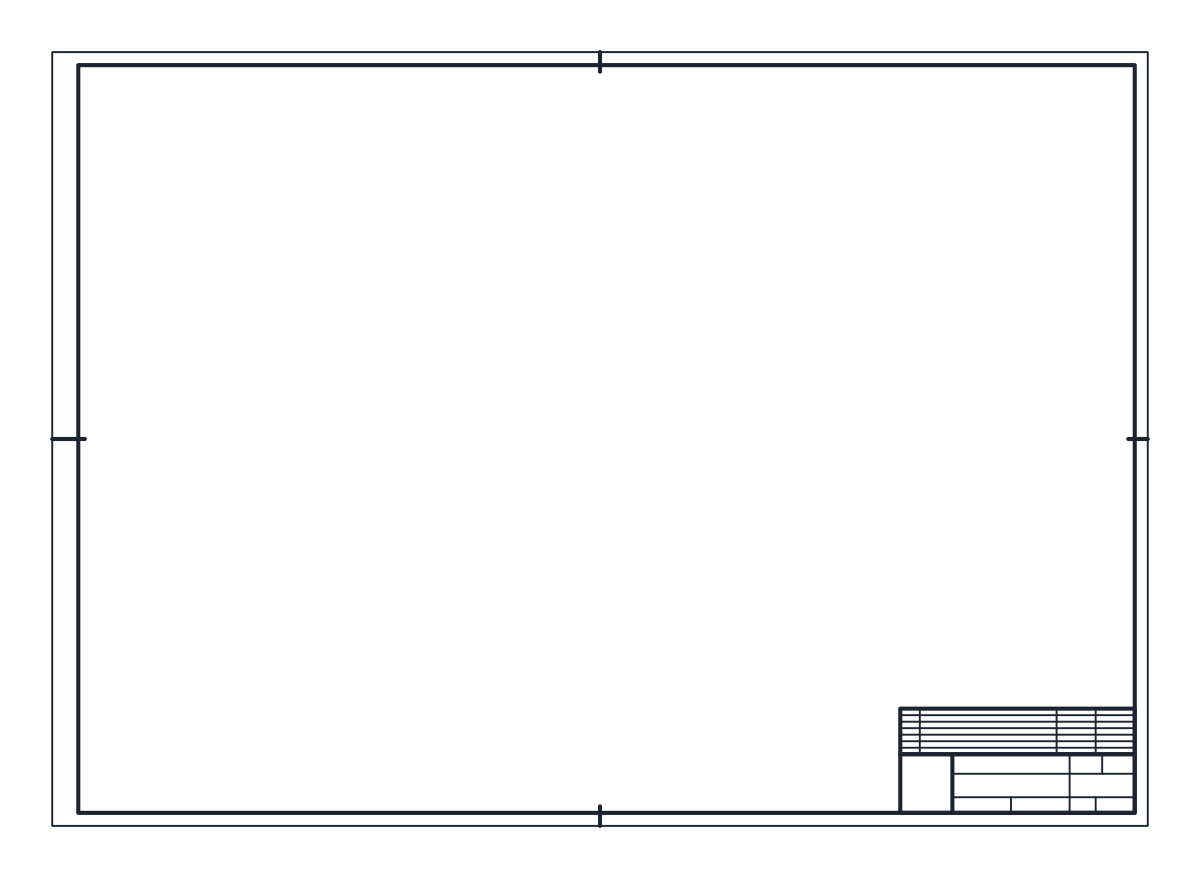
Three AutoCAD title block sheets at 1:1 in millimetres: A4 portrait (210 x 297 mm), A3 landscape (420 x 297 mm) and A1 landscape (841 x 594 mm), each with an ISO 5457 frame and a 180 x 45 mm title block.
A4 portrait title block CAD block
A3 landscape title block CAD block
A1 landscape title block CAD block
- Units
- Millimetres (INSUNITS 4), scale 1:1
- Formats
- DWG 2010 · DXF R2010
- Opens in
- AutoCAD and AutoCAD LT 2010 or later, BricsCAD, ZWCAD and DraftSight. The DXF opens in most CAD programs.
- Views
- Sheet
- License
- Free for personal and commercial projects. License
AutoCAD title block on ISO A4, A3 and A1 sheets
Each file is a whole drawing sheet saved as one block, drawn at 1:1 in millimetres for paper space. The sheets are the ISO 216 sizes. A4 portrait is 210 x 297 mm, A3 landscape is 420 x 297 mm and A1 landscape is 841 x 594 mm. The outer rectangle is the trimmed edge of the sheet, so the block is exactly the paper size.
Title block CAD layout: ISO 5457 frame and ISO 7200 fields
Inside the trimmed edge is the drawing frame after ISO 5457, with a 20 mm filing margin on the left for binding and 10 mm on the other three sides. Four centring marks sit on the axes of the sheet and cross the frame, so the sheet can be lined up when it is reproduced.
The title block sits in the lower right corner of the frame. It is 180 x 45 mm, the width ISO 7200 gives for title blocks, which is exactly the width inside an A4 frame (210 - 20 - 10 mm). It is divided into a 40 mm column on the left for the logo, a project and title area, a row for drawn by and checked by, and a column on the right for scale, date, revision and sheet number. Above it is a revision strip with 5 mm rows and columns for index, description, date and author. A4 has three revision rows, A3 four and A1 six.
The frame and title block outline are on G-ANNO-TTLB. The trimmed edge and the inner dividing lines are on G-ANNO-TTLB-DETL, so they can plot thinner.
Using the AutoCAD title block template in a layout
Keep the plan at full size in model space and put the sheet on a layout. Open the layout tab and use the Page Setup Manager to pick the printer or PDF driver, the ISO paper size, plot area Layout and scale 1:1. With the DWG To PDF driver choose an ISO full bleed paper size, otherwise the printable margins of the driver can clip the trimmed edge.
Insert the title block at 0,0 with a scale of 1. Then make a viewport inside the frame with MVIEW, double click inside it, pan to the plan and set the scale from the viewport scale list, 1:50 or 1:100 for most building plans. Lock the viewport display so the scale cannot change by accident. The guide to inserting a CAD block covers the insertion steps.
Title block text and revision rows
The fields are empty. Add the project name, drawing title and numbers as text over the block, or open the block in the Block Editor and add attribute definitions so AutoCAD asks for each value on insertion. Save the result as your own template file, a DWT, so new drawings start with the layout and sheet ready. North arrows and graphic scales for the viewports are in the AutoCAD symbols collection.